Multiple plans, exported as PNG or PDF
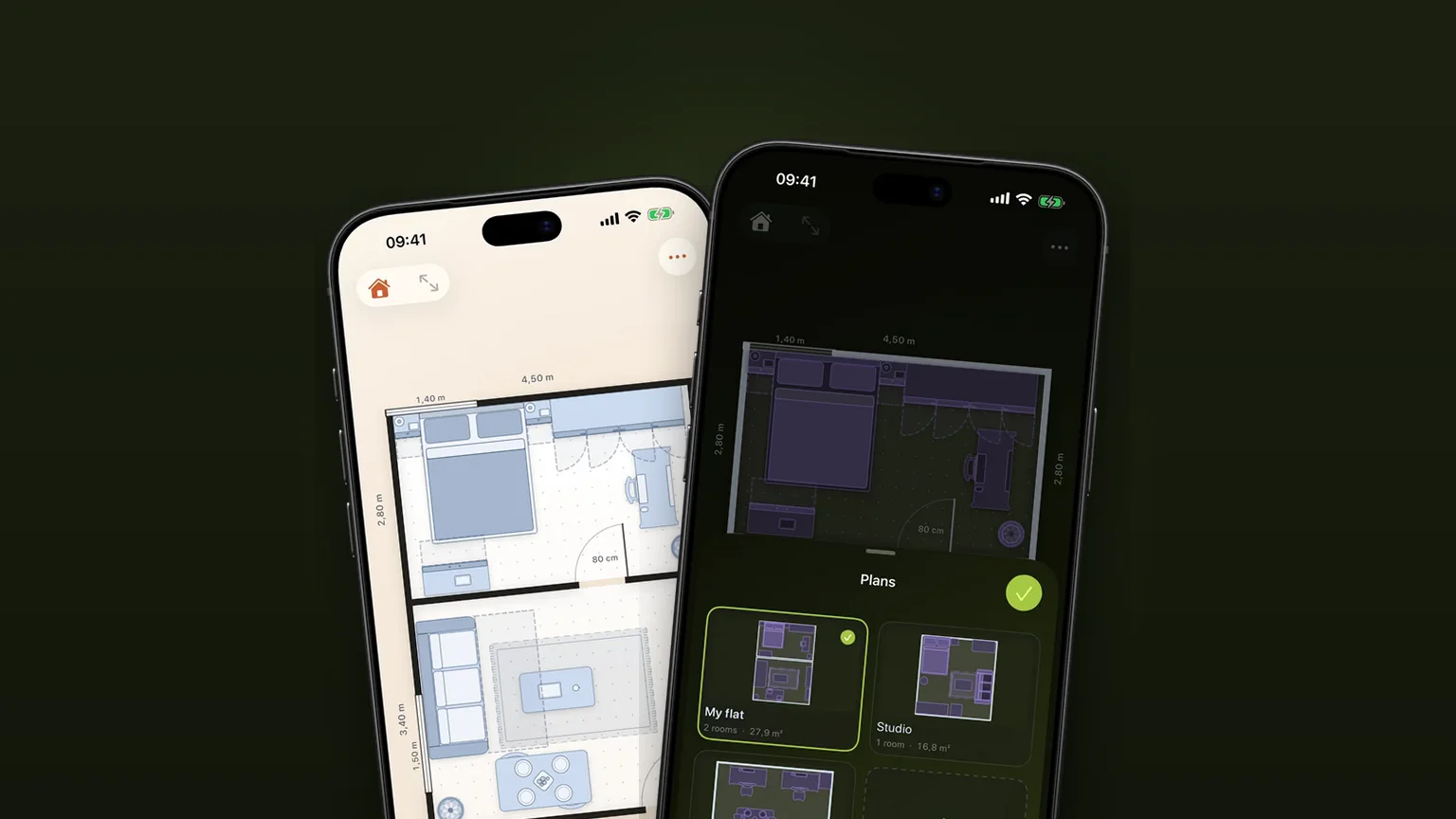
Scooch keeps every place you plan, your flat, the summer house or the office, in one library. Open any plan and export it as an A4 PDF or a PNG you can send to anyone.
 Scooch is an iPhone and iPad appPoint your iPhone camera at the code to install it.
or text me the link
What it does
Scooch holds as many plans as you like behind one picker. Each plan has its own rooms and furniture, and you switch between them by their thumbnails. Undo works within the plan you have open and starts fresh when you switch. Any plan can then be exported as a PDF or a PNG, drawn on a clean light page, and sent through the share sheet.
The built-in Notes and Files apps can store a photo or a screenshot, but a screenshot only captures whatever part of the plan was on screen, in whatever colours the app was wearing. An export from Scooch draws the whole plan, fitted to the page, every time. Files and Notes are still a fine place to keep the result afterwards. For how a plan is drawn in the first place, see rooms drawn to their real size.
How it works
Keep several plans
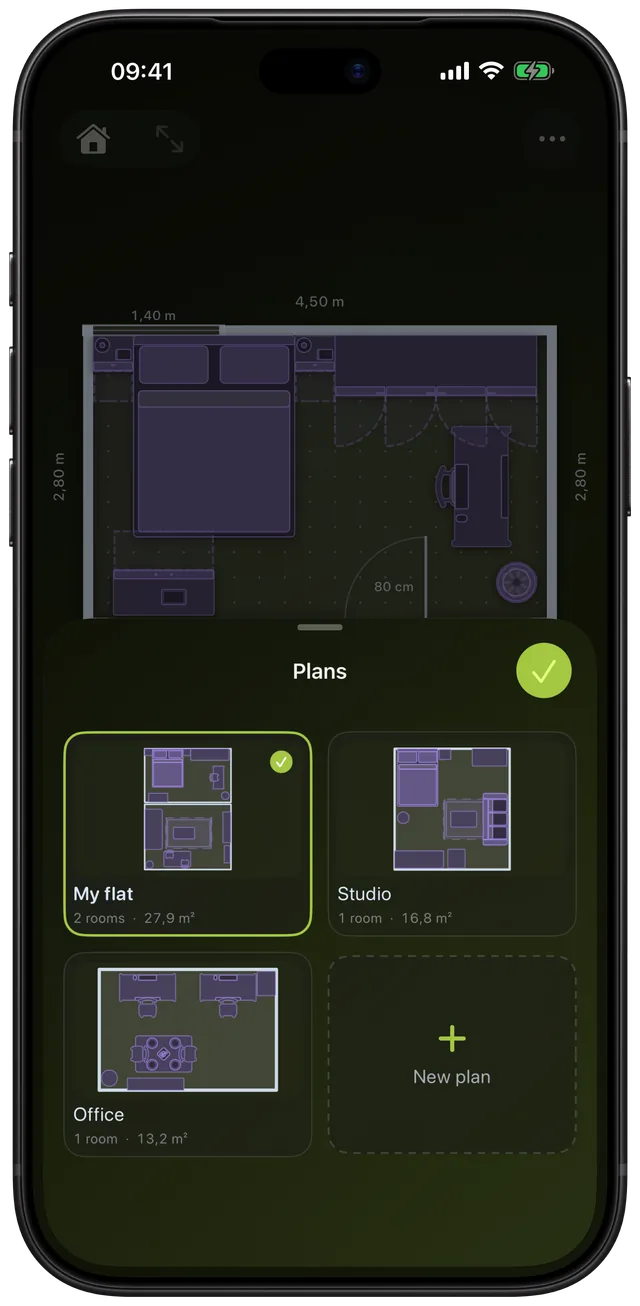
- Tap the Plans button (the house icon) at the top left of the canvas. The Plans sheet opens with one card per plan, each showing a live thumbnail, the plan name, its room count and its total area.
- Tap New plan, type a name and tap Create. Scooch starts it from a small demo room you can reshape, and opens it.
- Tap any card to open that plan. The open plan has a check mark.
- Press and hold a card to Rename, Duplicate or Delete it.
Export a plan
- Open the plan you want to send.
- Tap the More menu (the three dots) and choose Settings.
- In the Export card, tap the Format menu and pick PDF or PNG image. PDF is selected by default.
- Tap Export. The iOS share sheet opens with the file ready to send by Mail or Messages, to save to Files or to hand over by AirDrop.
The export is of the plan that is open, and of the whole plan, not of the part you had zoomed or panned to. The file is named after the plan, so a plan called Summer house arrives as Summer house.pdf.
Options
| Option | What it does | Detail |
|---|---|---|
| Vector, so it stays sharp when printed or zoomed | One A4 page | |
| PNG image | A picture for chat apps and quick previews | Rendered at 3 times the page size |
| Page orientation | Follows the plan automatically | Landscape when the plan is wider than it is tall, otherwise portrait |
| Measurements (More menu) | Decides whether the outer dimensions, room areas and item sizes print | On or off, set before you export. A multi-room plan prints its overall width and height, a single room prints each wall |
| Units (Settings) | The export uses the unit you have chosen | Metric or Imperial |
| Plans: Rename, Duplicate, Delete | Manage the library from a card's menu | A copy is named "(name) copy" |
Every export prints on the same light palette, whatever theme the app is using, so a plan drawn in a dark theme still arrives as dark lines on white paper. The page has a title row with the plan name, the room count and the total area, and the plan fitted below it with room for door swings. Furniture, doors, windows, switches, outlets and vents all print.
The page is A4 (595 by 842 points at 72 dpi). On a PNG at 3 times that, a portrait export is 1,785 by 2,526 pixels, which survives being opened on a desktop and zoomed.
When to use it
Your flat and the summer house
Keep one plan per place. Open the flat to check whether the new wardrobe fits, then switch to the summer house without losing either layout. The thumbnails make each one recognisable at a glance.
Trying a different layout
Press and hold a plan and choose Duplicate. You get an exact copy to rearrange, and the original stays as it was. Compare the two, and delete the one you do not want. The furniture layout guide covers the order to arrange things in.
An office move
Export the new floor as a PDF and send it to the removals firm or the facilities contact. It is a page they can print, and with Measurements on, they can read the overall dimensions.
A landlord or a partner who wants to see it
Send a PNG in a message. The recipient needs no app and no account, and the plan opens as an ordinary picture.
Plans for different stages
Keep "Now", "After the renovation" and "Option B" as separate plans, and export the ones the decision needs. Rooms and furniture, including furniture at real sizes, carry over into each copy.
Limits
- One plan per export. You export the open plan. There is no way to export the whole library in one go.
- One page, A4 only. There is no Letter or A3 size, no multi-page tiling and no scale-to-print option. The plan is fitted to the page.
- Always the light palette. You cannot export in your dark theme.
- No clash marks in the file. Overlap warnings are for you while arranging, so exports show no red hatching.
- Not editable elsewhere. The PDF and PNG are pictures of the plan, not CAD or SVG files, and cannot be opened and changed in another planner.
- A plan always remains. The last plan cannot be deleted. Deleting a plan cannot be undone, because undo history is cleared whenever you switch, add or delete a plan.
- No drag to reorder. Cards appear in the order they were made.
- Plans and export come with the unlock. Scooch is free to download, but once the first-run setup is done the whole app, plans and export included, needs the one-time unlock. It is not a subscription.
Scooch runs on iPhone and iPad with iOS 26 or later, which includes the current iOS 27.2. To keep copies of your plans safe, Scooch can also back them up to iCloud from Settings.
Frequently asked questions
How do I export a floor plan as a PDF on iPhone?
In Scooch, open the plan, tap the More menu, choose Settings, pick PDF in the Export card and tap Export. The share sheet opens so you can mail it, save it to Files or AirDrop it.
Can I export a floor plan as a PNG?
Yes. Choose PNG image in the Format menu and tap Export. The picture is rendered at 3 times the page size, so it stays readable when zoomed on a computer.
Can I keep more than one floor plan in the app?
Yes. The Plans button at the top left opens a library with a card for each plan. You can add a new plan, switch, rename, duplicate or delete plans from there. Scooch does not set a number of plans in its code.
Does the export include the measurements?
It follows the Measurements switch in the More menu. With it on, the plan's outer dimensions, room areas and item sizes are printed in the unit you chose (a single-room plan prints each wall). With it off, the plan prints without them.
Does a dark theme export as a dark plan?
No. Every export uses a light palette so it reads well on white paper and in mail apps, whichever of the app's themes you use while drawing.
Sources
Keep every place in one app
Get Scooch on the App StoreMore features
Will it fit? Clash detection that turns red
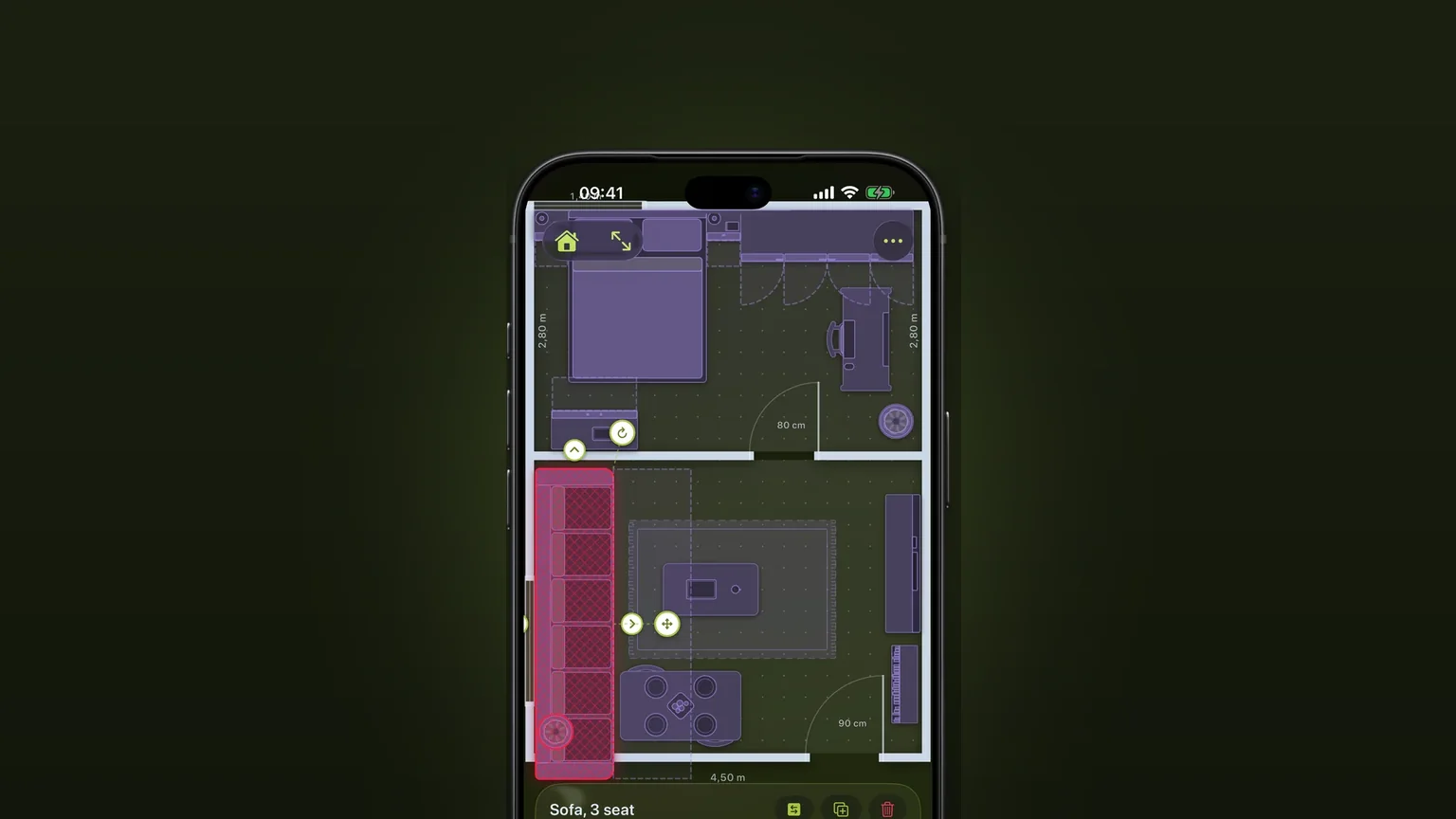
A piece that overlaps another, sticks out of the room or stands where a door or drawer has to open turns red as you move it.
Corner sofas and sofa beds
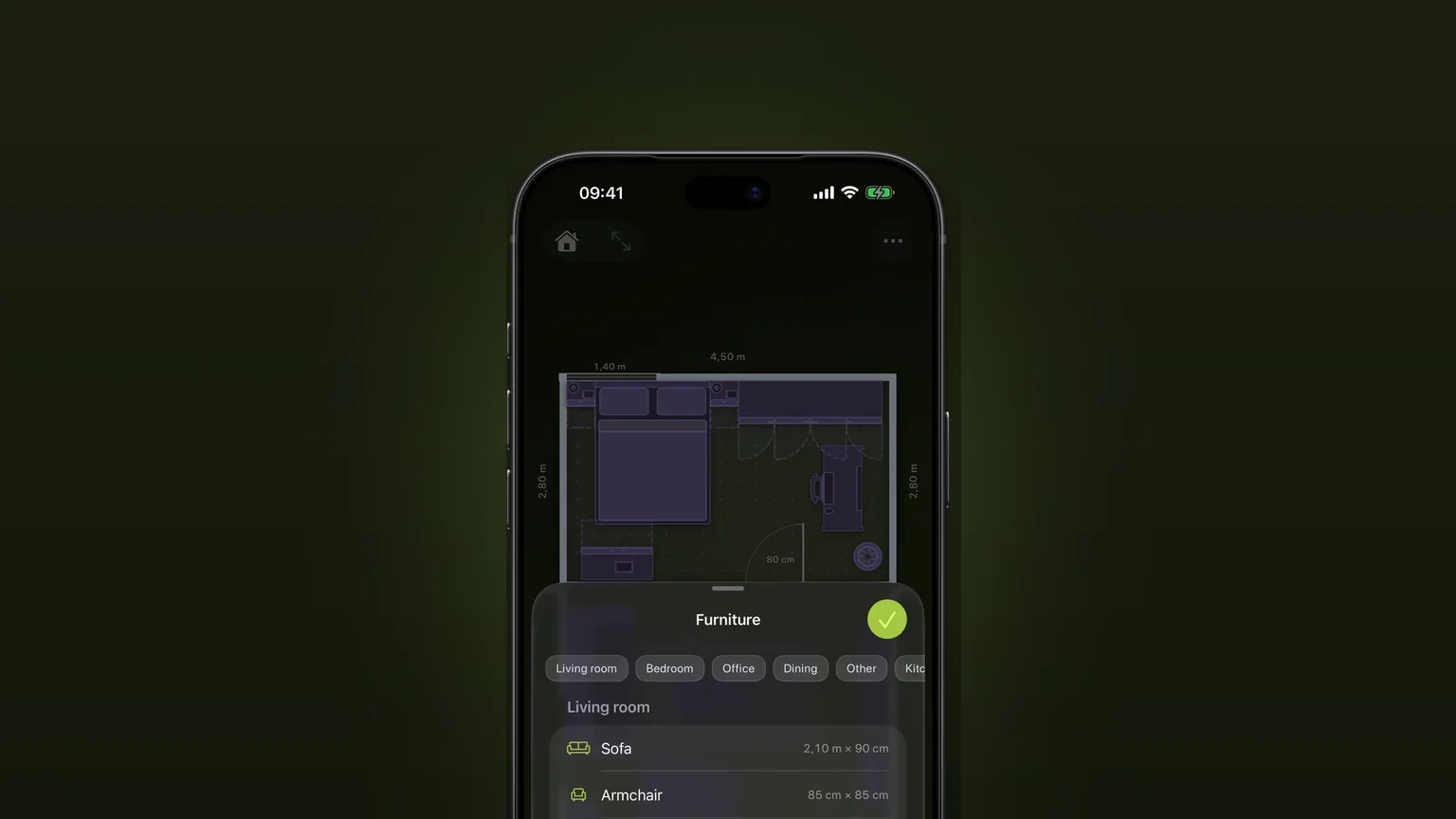
One L-shaped piece with its own depth on each side, and a sofa bed that pulls out to the corner.
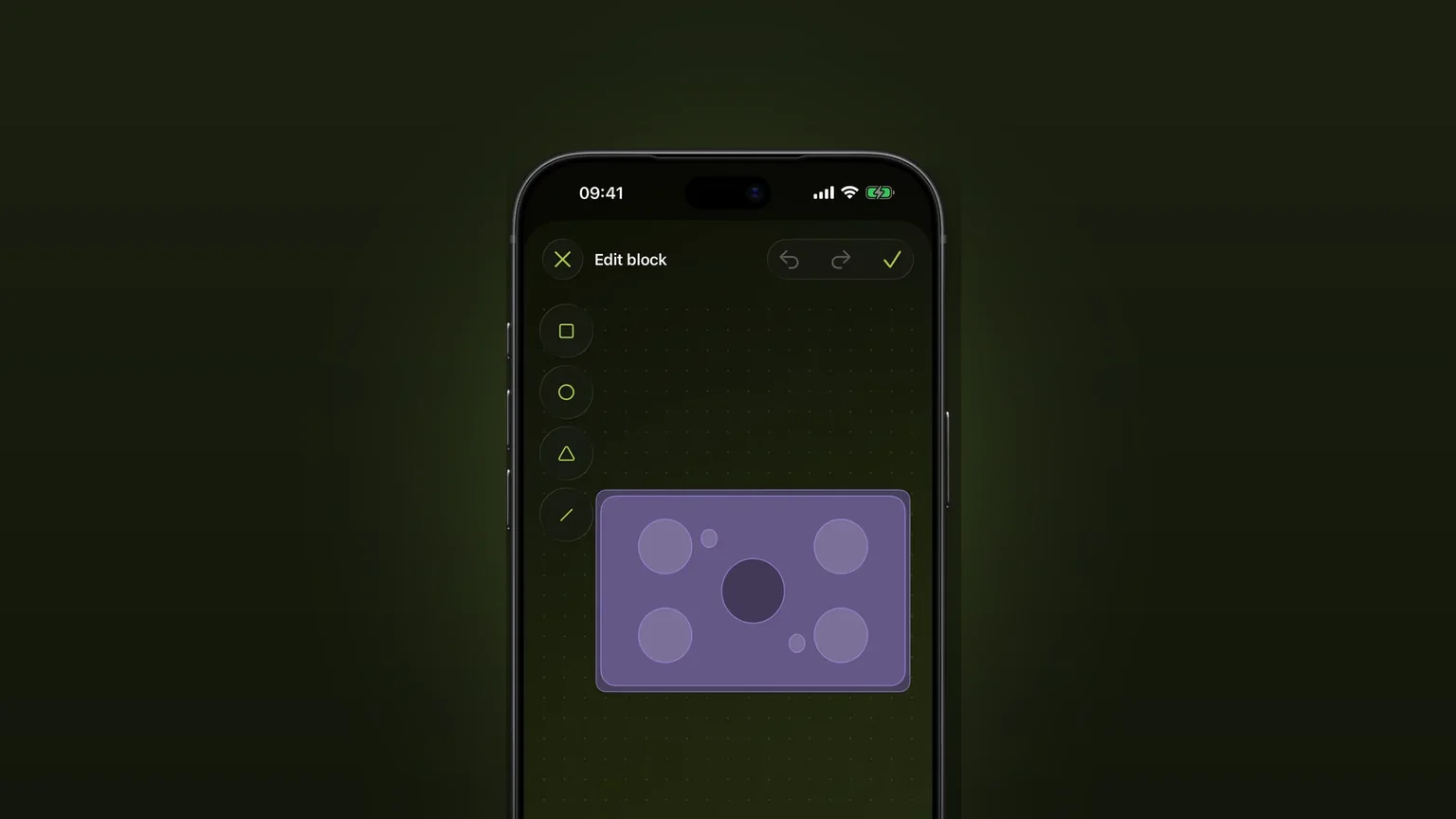
Draw your own furniture, to scale
Draw a piece the catalogue lacks from shapes, type its width, depth and height, and place it in any plan.